Penyemak imbas Opera diperlukan.
This is the only official TinEye extension developed by the TinEye team.
Search TinEye to quickly find out where an image came from, how it's used, or identify higher-resolution versions.
About TinEye
TinEye invented reverse image search in 2008 to make images searchable.
Learn more about TinEye here: https://tineye.com/about
How TinEye can help:
• Debunk fake images
• Tell you where an image came from
• Help attribute images
• Show you where an image is being used online
• Identify if an image is a stock photo
• Find higher-resolution copies
• Verify dating profiles
Learn how to use TinEye in our tutorial: https://tineye.com/how
Private & secure
Your search image is never saved. We only collect extension version data. For more information, please see our privacy policy: https://tineye.com/privacy and our terms of service: https://tineye.com/terms.
How to use this extension:
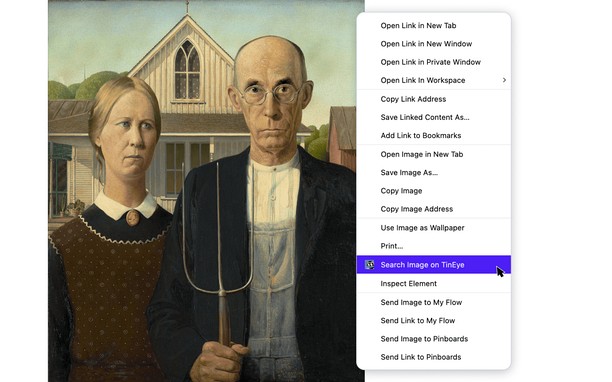
1. Right-click an image from the web and select ‘Search image on TinEye’ from the menu.
2. View TinEye results.
How to configure the TinEye extension:
You can choose to open TinEye.com results in the current tab, a new active tab, or a new background tab, and you can select how your results are initially ordered: Last Used settings, Best Match, Most Changed, Biggest Image, Newest, or Oldest.
To set preferences, click the TinEye icon in your menu bar and select ‘Extension Options’. If the icon isn’t pinned, click the cube icon in your browser’s top-right corner, then the three dots next to ‘TinEye Reverse Image Search’, and select ‘Extension Options’.
Petikan skrin
Mengenai sambungan
- Muat turun
- 358,295
- Kategori
- Cari
- Versi
- 2.0.4
- Saiz
- 26.1 KB
- Last update
- 12 Feb 2025
- Lesen
- Copyright 2024 TinEye
- Dasar privasi
- Laman web perkhidmatan
- https://tineye.com
- Halaman sokongan
- https://tineye.com/extensions
Related
-
Plagiarism Checker
(c) 2010-2022 Plagiarisma Ltd.
Penarafan: Jumlah bilangan penarafan: 1
-
Search by image on Aliexpress
The extension allows you to use any picture (photo) to quickly search for products on Aliexpress
Penarafan: Jumlah bilangan penarafan: 7
-
Google Reverse Image Search
Right-click on an image and perform a search with Google Lens. Icon by Daniel Bruce (Entypo Pack).
Penarafan: Jumlah bilangan penarafan: 23
-
Search Window
Special window, which appears on selecting a text, with helpfull icons for searching, translating and more!
Penarafan: Jumlah bilangan penarafan: 9
-
Trufflepiggy - Context Search
The context search for all of us: quick, easy & fully customizable. Perfect for translations, price comparisons, image searches,…
Penarafan: Jumlah bilangan penarafan: 4